How to Get Out of Bicycle Mode on Google Maps
Learn how to exit bicycle mode in Google Maps and switch to driving, walking, or transit directions. Step-by-step instructions for mobile and desktop, troubleshooting tips, and best practices to ensure you get the right route every time.


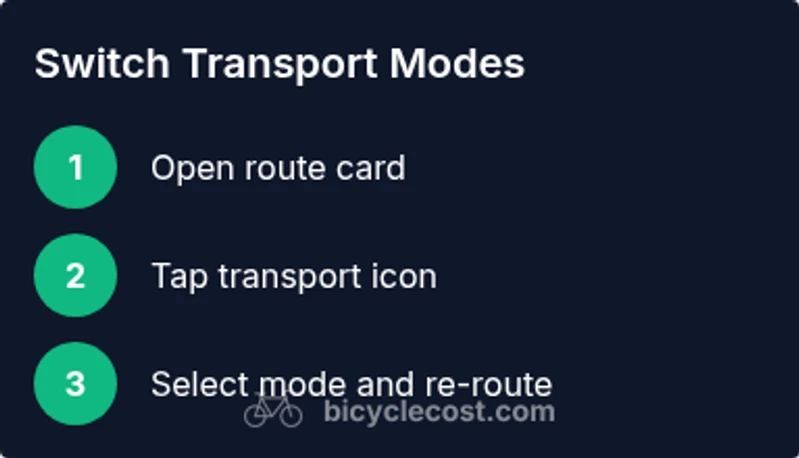
To exit bicycle mode in Google Maps, switch the active transport option from bicycle to driving, walking, or transit and re-route if needed. On mobile, open the route card, tap the transport icon, and choose your mode; on desktop, use the transport selector beside the route. This ensures you stop bike-specific routing and get driving or walking directions.
Why Bicycle Mode Happens and When You Might Want to Exit
Bicycle mode in Google Maps appears when the app detects that a route is best suited for cycling or when you explicitly select the bike option in the route planner. In urban areas with bike lanes, elevation changes, or bike-friendly detours, Maps will optimize for cyclists. However, there are times when you want to switch to driving, transit, or walking—perhaps to compare travel times, plan multi-modal trips, or because a bike route is unavailable due to road work. Understanding when bicycle mode becomes active helps you decide whether to stay in bike mode or switch to another transport option for more accurate, practical directions. BicycleCost notes that most users switch modes mid-trip to align directions with current travel plans, rather than forcing a bike route when it isn’t feasible. Make a habit of verifying your mode before you start navigation to prevent detours and confusion.
How to Switch Modes on Mobile Apps (iOS/Android)
Getting out of bicycle mode on a mobile device is straightforward, but the exact taps can differ slightly between Android and iOS. Start by opening Google Maps and entering your destination. In the route card, you’ll see a transport icon showing the current mode (car, bicycle, pedestrian, or transit). Tap that icon and select your preferred mode (driving, walking, or transit). The app will re-calculate the route using the new mode. If you don’t see the option, update the app or refresh the route, then try again. Pro tip: For quick access, you can also long-press or tap the mode button again to toggle through modes without starting a new search.
Using Route Options to Customize Your Mode
Beyond a simple mode switch, Google Maps offers route options to tailor how directions are generated. After choosing a new mode, tap the three-dot menu or “Options” to adjust preferences such as avoiding highways, ferries, or tolls. If bicycle mode was chosen due to bike-friendly paths, you can disable that option to let Maps select a more general route. For a fair comparison, re-run the route with each mode to compare time estimates, distance, and elevation. This process helps you determine whether biking remains the fastest option or if a car or transit route is preferable for your trip.
What to Do If Bicycle Mode Persists
If Maps keeps showing a bike-oriented route despite selecting another mode, try these steps. First, refresh the route or close and reopen Google Maps. Clear the app cache or sign out and back in if the problem persists. Ensure you’re on the latest version of the app, as older builds can misinterpret mode data. If the issue occurs on desktop, reload the page, disable any browser extensions that modify routing, and reselect your mode. In rare cases, a data sync across devices can reset routing preferences.
How Google Maps Decides Between Bike, Car, or Walk
Maps uses a mix of factors to determine the best mode for a given route: the availability of bike lanes, road type, elevation, traffic patterns, and historical user behavior. For short, flat trips in bike-friendly cities, cycling may win. For long distances or roads with heavy traffic, driving or transit often becomes optimal. Mode selection is also influenced by user-selected preferences and real-time conditions such as construction or closures. The more you interact with Maps, the better it becomes at predicting the mode you prefer.
Tips for Accurate Routing and Avoiding Bike-Only Detours
- Always verify the active mode before starting navigation to avoid unintended detours.
- Use the route options to turn off bike-preferred paths if you want to compare options across modes.
- Check elevation and distance estimates; bike routes can differ significantly from car routes, affecting travel time.
- If bike routes are essential for you, save them for dedicated bike trips and switch modes for non-bike legs of your journey.
Troubleshooting Across iOS and Android
On both iOS and Android, most mode-switch issues resolve with a quick refresh, cache clearing, or updating the app. Android users should verify location permissions and Google Maps’ access in system settings; iOS users should check location services and background activity permissions. If problems persist, try signing out and back in or reinstalling Maps. Desktop users should ensure browser cookies are enabled and disable extensions that could interfere with route data.
Desktop vs Mobile: Key Differences in Mode Switching
Desktop mode switching is often more stable for longer routes, with a larger transport selector near the route pane. Mobile devices provide easier, touchscreen-driven access but can have more frequent updates as you move. When traveling across a city with mixed road types, mobile mode switching allows quick recalculation mid-journey, while desktop provides a broader view of multiple route options. In all cases, ensure you’re using the correct route pane and confirm the chosen mode before you start navigation.
Real-World Checklists: Quick Reference
- Confirm the active transport mode before starting navigation.
- If a bike route appears, switch modes and re-run the route.
- Use route options to tailor mode preferences (avoid highways, tolls, etc.).
- Keep Google Maps updated and periodically clear cache if issues recur.
- For multi-modal trips, plan each leg with the appropriate mode and compare results.
Tools & Materials
- Smartphone with Google Maps installed(Ensure the app is up-to-date (Android or iOS))
- Stable internet connection(Needed to fetch route data in real time)
- Charger or power bank(Optional for long trips or external navigation use)
- Headphones (optional)(For audio cues while following directions)
- Computer or tablet (optional for desktop guidance)(Use desktop mode if you prefer a bigger screen)
- Google account signed in(Needed to save routes and preferences)
- Location permissions enabled(Allow Maps to access location for accurate routing)
Steps
Estimated time: 15-30 minutes
- 1
Open Google Maps and set destination
Launch Google Maps on your device, enter your destination, and view the initial route options. This primes the app to show the active mode you’re currently using, which in most cases is bicycle when you previously selected it.
Tip: Have your destination ready to minimize extra taps. - 2
Tap the transport mode icon
In the route card, find the transport mode icon (car, bicycle, pedestrian, or transit) and tap it to reveal available modes. This interface element is the quickest way to switch from bike to another mode.
Tip: If the icon isn’t visible, pull down on the route card to refresh it. - 3
Choose your preferred mode
Select driving, walking, or transit. The app will recalculate the route using the new mode, showing updated time and distance estimates.
Tip: Prefer driving for longer trips with traffic, or transit in congested areas. - 4
Review route and options
Review the new route and any route options (highways, ferries, tolls). Modifying these can impact travel time and path quality.
Tip: Compare at least two modes for the best balance of time and convenience. - 5
If needed, re-run or save
If you’re planning a multi-modal trip, you can save the bike route for later while using car mode for the current leg. This helps you manage expectations for each leg of the journey.
Tip: Save routes for quick access in the future. - 6
Refresh if nothing changes
If the mode switch doesn’t apply, refresh the route, reopen Maps, or reboot the device. Ensure an internet connection for accurate rerouting.
Tip: A simple refresh resolves most glitches. - 7
Update Maps and permissions
Check for app updates and confirm location permissions are still granted. Outdated software or denied permissions can affect mode detection.
Tip: Set Maps to always have location permission for optimal routing. - 8
Practice on a short trip
Test mode switching on a short, familiar route to build confidence before relying on it for longer trips.
Tip: Short trials prevent surprises during important trips.
People Also Ask
What is bicycle mode in Google Maps?
Bicycle mode optimizes directions for cyclists, prioritizing bike lanes and bike-friendly routes. It can be useful in bike-centric areas but may not suit every trip. If you need other options, switch to driving, walking, or transit.
Bicycle mode tailors routes for cyclists by favoring bike routes; switch to another mode if you needc a different travel option.
Can I switch modes while a route is active?
Yes. Tap the transport icon in the route card and select a new mode (driving, walking, or transit). Google Maps will recalculate the route based on your new choice.
You can switch modes mid-route by tapping the transport icon and choosing another option, and Maps will update.
Why does Maps keep showing bike routes even after I switch modes?
This can happen due to cached data, app glitches, or permissions not updating correctly. Refresh the route, clear the app cache, and ensure Maps has location and storage permissions.
If bike routes won’t disappear, refresh the route, clear cache, and check permissions.
Does switching modes affect live traffic estimates?
Changing modes can affect route options and time estimates, especially if the chosen mode uses different roads. Real-time traffic still influences driving and transit portions.
Yes, changing modes can modify expected travel times based on the roads used.
How do I reset Google Maps to auto-detect mode?
There isn’t a single reset button for auto-detect; instead, try deleting the app’s data/cache (on Android) or clearing cache (on iOS), and ensure location services are enabled. Reopen Maps and allow auto-detect to kick in anew.
You can reset by clearing data/cache and re-enabling location services, then Maps will re-detect mode based on route data.
Is there a difference between mobile and desktop mode switching?
Yes. Mobile focuses on touch-based toggles within the route card, while desktop presents a broader transport selector near the route pane. Both allow switching modes, but the UI differs.
Mobile is touch-first; desktop is more screen-close with larger route comparisons.
Watch Video
Quick Summary
- Verify mode before starting navigation
- Switch modes via the transport icon for quick changes
- Use route options to fine-tune mode preferences
- Keep Maps updated to prevent persistent cycling routes